Search the Community
Showing results for tags 'config.json'.
Found 1 result
-

Disable autojoin chat function in config.json
Mynoduesp posted a topic in New Player Help and Guides
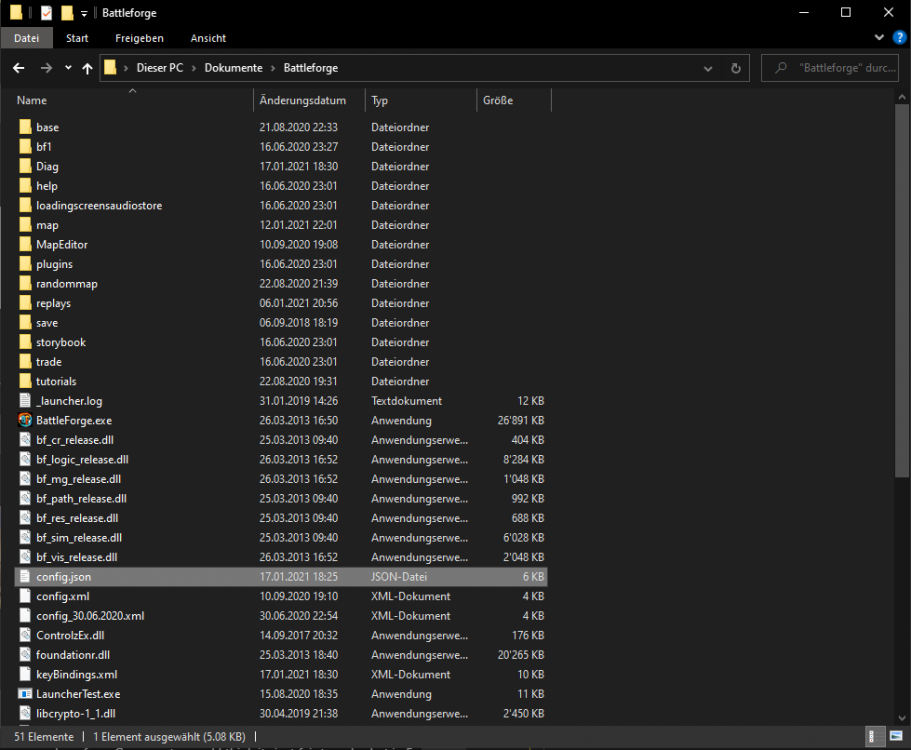
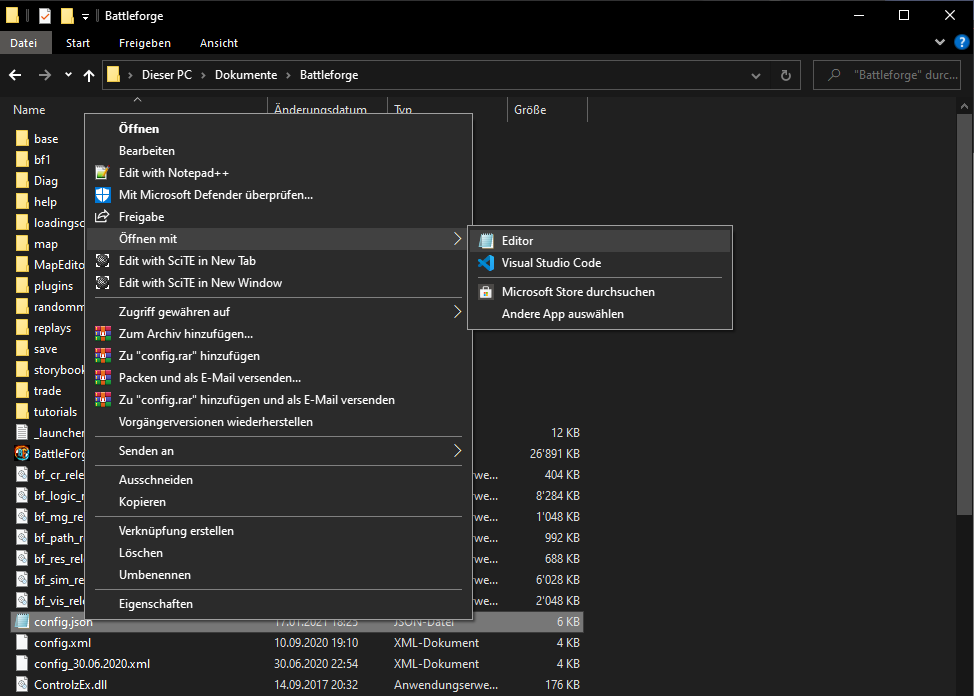
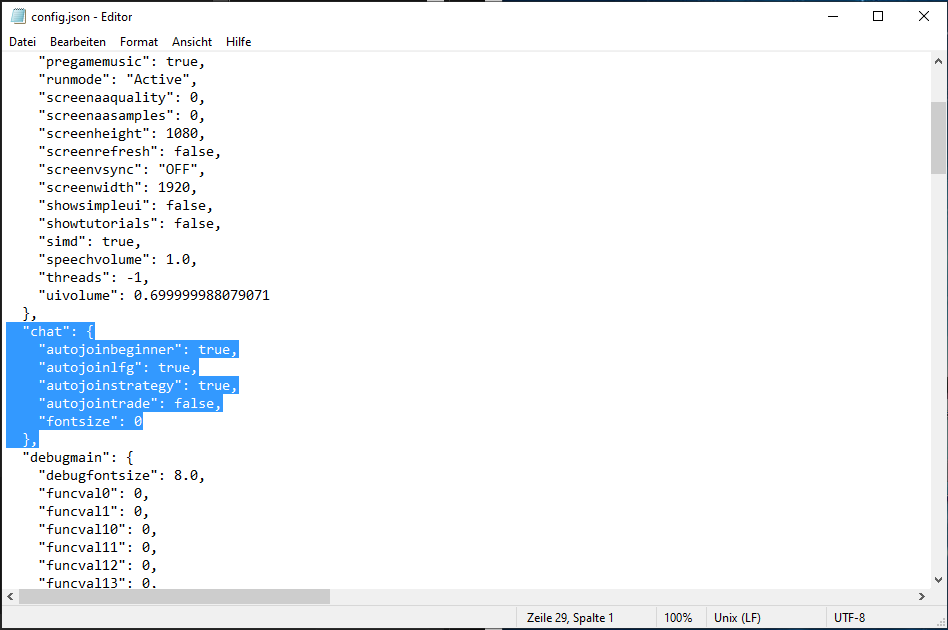
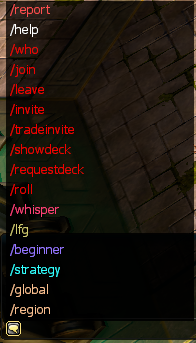
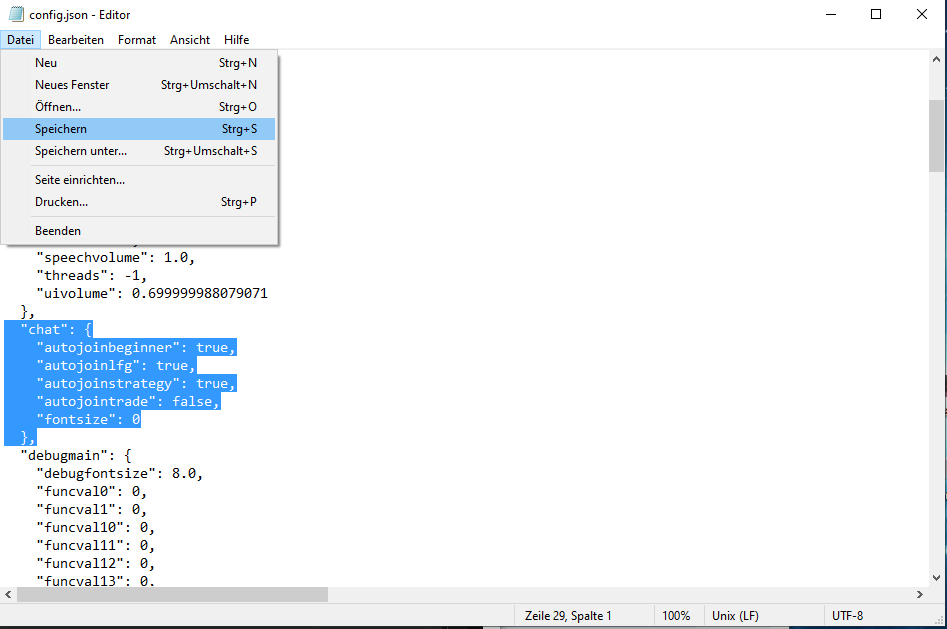
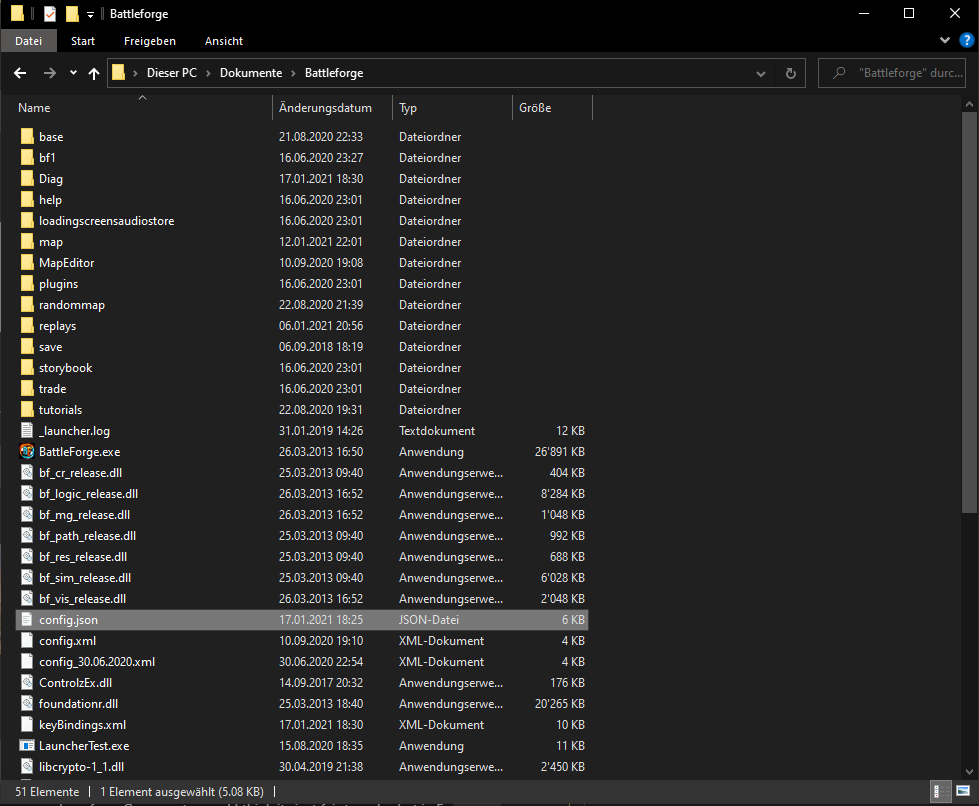
Due to popular request, here's a short tutorial on how to disable the autojoin chat funciton in Battlefoge: If you follow the steps you'll be able to disable or enable the autojoin function for every chat individually and don't have to type "/leave XY" every time you start up Battlefoge. 1. Open your Battlefoge folder and search for the file config.json 2. Open the config.json file with an editor 3. Add or edit the highlighted part below. To disable the autojoin funciton (does not join chat on startup) replace true with false on the corresponding line. To enable the autojoin function (automaticly joins chat on startup) replace false with true on the corresponding line. "chat": { "autojoinbeginner": true, "autojoinlfg": true, "autojoinstrategy": true, "autojointrade": true, "fontsize": 0 }, 4. Save config.json 5. Start-up Battleforge and enjoy your new settings If you have difficulties reply to this thread or directly msg me on the forum. Additional information: Check out other chat functions ingame by clicking on the speakbouble in the bottom left corner of the chat window.