Skip to content
  • Search By Tags

    Search will match any tag entered
  • Search By Author

Content Type

Forums

  • Skylords Reborn
    • Announcements
    • Updates
    • Events and Tournaments
    • Contribute to the project
  • Support
    • Technical Support
    • Report A Bug
    • Ban Appeals
  • Community
    • Suggestions
    • General Talk
    • Media
    • Off-Topic
    • Development
  • Gameplay
    • Cards
    • New Player Help and Guides
    • Deck Building and Colour Strategies
    • PvE
    • PvP
    • Maps
    • Campaign Maps
  • Recruitment
    • Art
    • Game Design
    • Map Making
    • Community
    • Development

Calendars

  • Community Calendar

Find results in

Find results that contain...

Date Created

  • Start

    End

Last Updated

  • Start

    End


Filter by number of...

  • Minimum number of comments

  • Minimum number of replies

  • Minimum number of reviews

  • Minimum number of views

Found 1 result

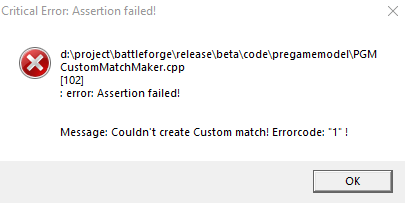
  1. NAME: "Critical Error: Assertion failed!" SEVERITY: 2 LOCATION: Starting rPVE REPRODUCIBILITY: NONE DESCRIPTION: Starting rPVE invokes a Whitescreen and an Error Message SCREENSHOT/VIDEO: ADDITIONAL INFORMATION: Not sure when exactly the Error started. My assumption is while pressing "start the game" Errorrating 2, since i havent reproduced the bug and it could be due to server shutdown. pressing the OK button resulted in another error message. was either a .net or visual studio 20XX message saying something about virtual methods. dissapeared in a fraction of a second May be due to shutting down the Servers. Approx. 30s later a Discord Notification popped up: InsaneHawkheute um 19:07 Uhr @everyone Hello Skylords! Our servers are off for now, on purpose, we're doing a maintenance that is quite important on our end. We'll let you know once servers will be back online! Thank you for your patience!
Account

Navigation

Search

Search

Configure browser push notifications

Chrome (Android)
  1. Tap the lock icon next to the address bar.
  2. Tap Permissions → Notifications.
  3. Adjust your preference.
Chrome (Desktop)
  1. Click the padlock icon in the address bar.
  2. Select Site settings.
  3. Find Notifications and adjust your preference.